
















News


 电商部
电商部  2025-12-23 10:47:41
 DDR4 RAM Maintenance Guide 2025: Extend Lifespan and Ensure Stable Performance
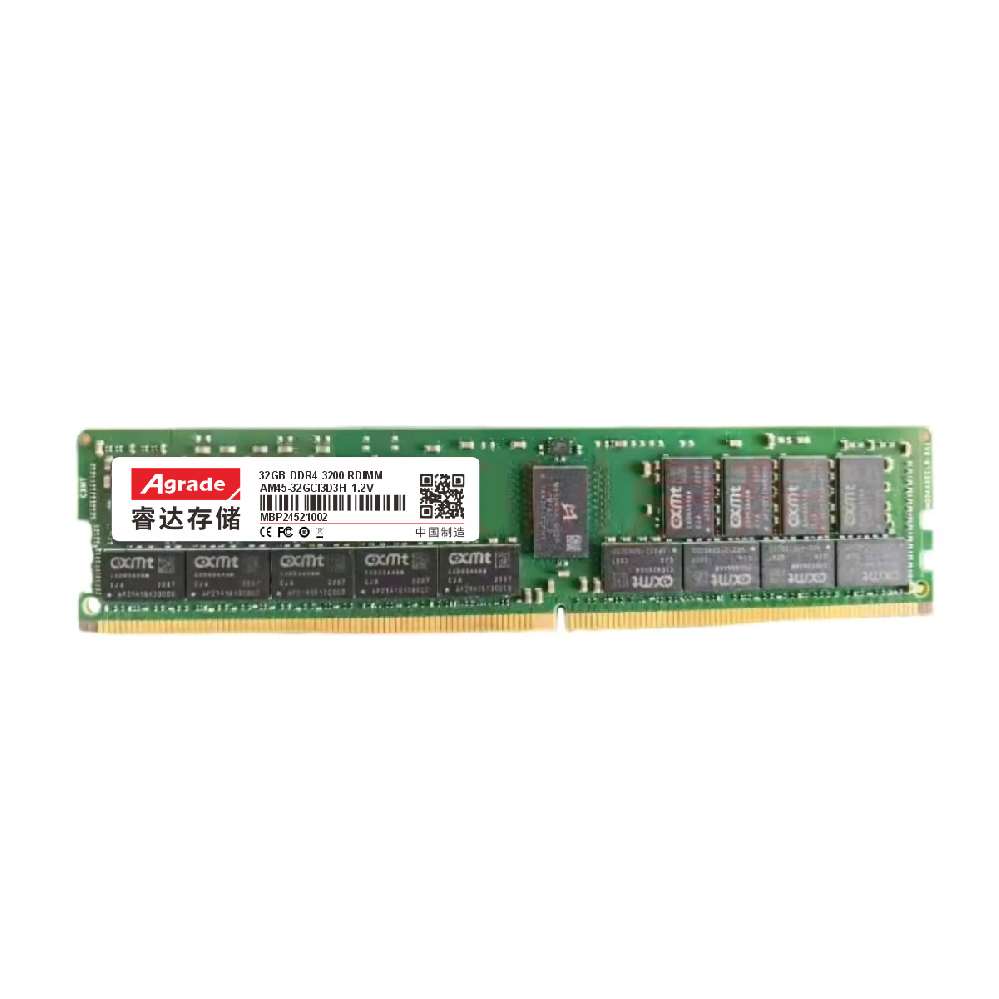
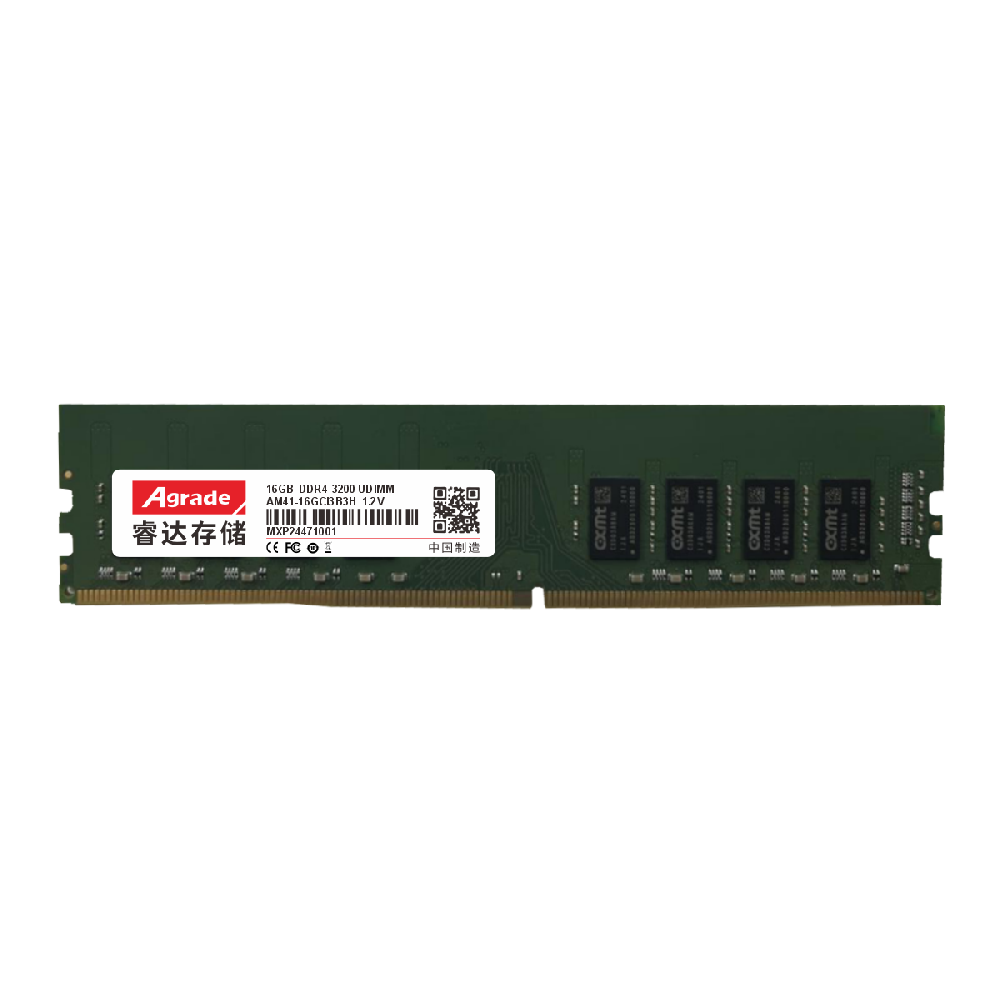
Proper maintenance of DDR4 RAM is essential to ensure long-term stable operation and extend its service life, especially for users who rely on their computers for daily work, gaming, or content creation. Many users overlook RAM maintenance, which can lead to performance degradation, system crashes, or even hardware failure over time. This guide covers practical DDR4 maintenance tips and common issues troubleshooting.
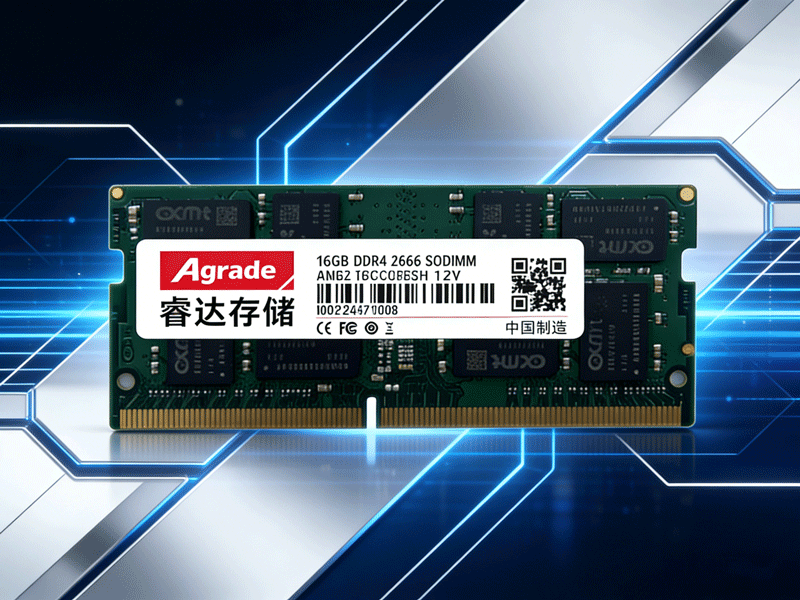
First, keep the RAM and motherboard clean. Dust accumulation on RAM gold fingers, slots, and heat spreaders can cause poor contact and overheating. To clean, shut down the computer, disconnect the power supply, and remove the RAM modules. Use a soft eraser to gently wipe the gold fingers (avoid using sandpaper or sharp tools that may scratch the surface) to remove oxidation and dirt. Then, use a compressed air can to blow away dust from the RAM slots on the motherboard and the heat spreader of the RAM module. Reinstall the RAM firmly into the slots until you hear a click, ensuring a secure connection.
Second, monitor temperature and voltage. DDR4 RAM generates heat during operation, and excessive heat can affect stability and lifespan. Ensure good airflow in the computer case—install case fans if necessary, and avoid blocking the RAM with large coolers or cables. Use monitoring tools like HWMonitor or AIDA64 to check RAM temperature; ideally, it should stay below 50°C during normal use and below 60°C under heavy load. For overclocked DDR4, pay attention to voltage settings: do not exceed 1.4V for long-term use, as high voltage will accelerate component aging.
Third, avoid improper overclocking and voltage adjustment. While overclocking can boost performance, aggressive overclocking without proper cooling or stability testing can damage RAM chips. If you have overclocked your DDR4, revert to default settings or XMP profiles if you encounter frequent crashes. For beginners, it is recommended to use the official XMP profiles instead of manual overclocking to ensure stability.
Common DDR4 issues and troubleshooting: 1. System fails to boot or recognizes less RAM than installed. This is usually caused by poor contact or faulty slots. Reinstall the RAM, try different slots, or test the RAM on another computer to rule out hardware failure. 2. Frequent blue screens or application crashes. Use MemTest Pro to run a full memory test; if errors are detected, the RAM may be faulty or incompatible. Try updating the motherboard BIOS, adjusting RAM timing/voltage, or replacing the faulty module. 3. Performance degradation. If your computer becomes slower over time, check if the RAM is running at the correct frequency (enable XMP in BIOS if it’s running at the base frequency). Close background applications that consume excessive memory, and run a disk cleanup to free up system resources.
Additional tips: Avoid sudden power outages, which can damage RAM and other hardware. Use a UPS (Uninterruptible Power Supply) to provide stable power. Also, avoid mixing RAM modules of different frequencies, timings, or brands, as this can cause compatibility issues and unstable performance. If you need to expand RAM capacity, choose modules with the same specifications as the existing ones. By following these maintenance tips, you can keep your DDR4 RAM in optimal condition and ensure reliable performance for years to come.

-
Products
Advantages
-
Solutions
-
News
About us
-
Contact us
Tel:+86 19926658803
Whatsapp:+86 19926658803
lianle1210@163.com
Address: 30CF, Caihong Building, Caihong Road, Futian District, Shenzhen City, Guangdong Province, China


Friendly Links:
