














News


 电商部
电商部  2025-12-23 10:41:37
 Best DDR4 RAM for Laptops in 2025: Top Picks for Gaming and Productivity
Laptop users often face insufficient memory issues, especially when running multiple applications, gaming, or processing large files. Upgrading DDR4 SODIMM modules is a cost-effective way to boost laptop performance. This article recommends the best DDR4 laptop memory in 2025 and shares key selection tips.
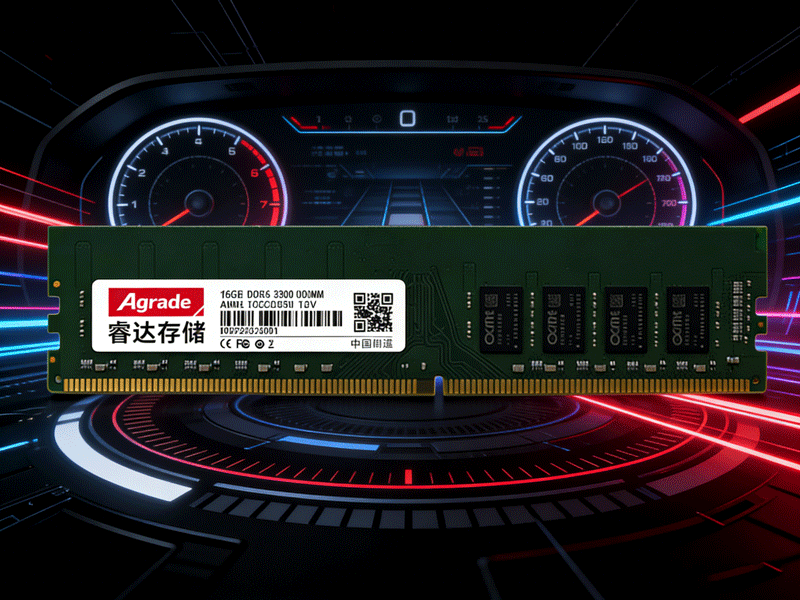
Kingston FURY Impact DDR4 is a top choice for gaming laptops. Available in capacities up to 64GB (32GB×2) and frequencies up to 3200MT/s, it supports Intel XMP and AMD Ryzen platforms. Its plug-and-play automatic overclocking function allows it to run at the highest published frequency without BIOS adjustment, which is very user-friendly. With a low voltage of 1.2V, it achieves high performance while reducing power consumption and heat generation, keeping the laptop cool and quiet during long-term use. The sleek black PCB design fits perfectly in small-form-factor laptops and SFF machines.
For productivity users who need large-capacity memory, the Crucial Ballistix Sport LT DDR4 SODIMM is worth considering. It offers 8GB, 16GB, and 32GB single-module options, and the 64GB kit (32GB×2) can easily handle multi-tasking scenarios such as opening multiple browser tabs, running Office suites, and design software simultaneously. It has a CL16 low timing, ensuring fast data access speed, and is compatible with most mainstream laptops and Intel/AMD processors. The affordable price makes it a favorite among office workers and students.
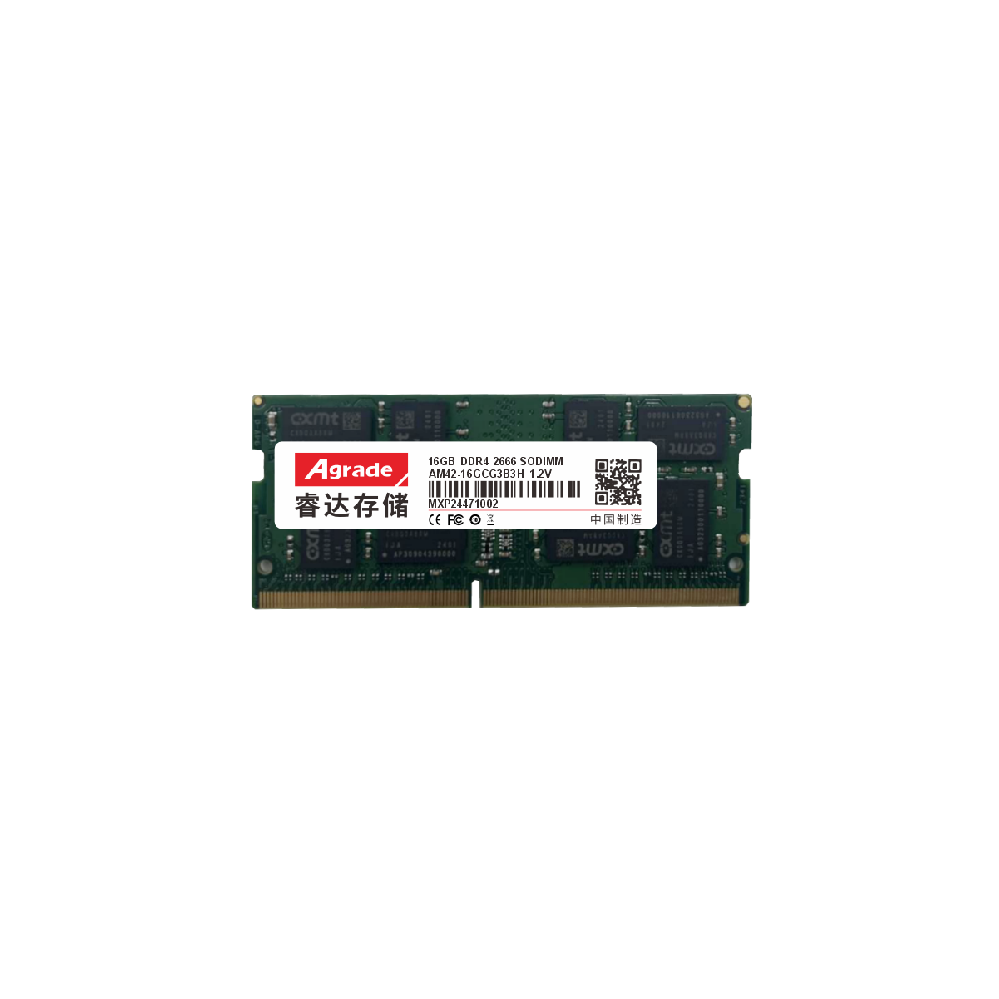
When selecting DDR4 laptop memory, there are several key points to note. First, confirm the maximum memory support and frequency limit of your laptop (check the official manual or motherboard specifications). Second, choose the correct form factor—laptops use SODIMM modules, which are smaller than desktop DIMMs. Third, prioritize modules with reliable brands and lifetime warranties to ensure after-sales support. Finally, for gaming or content creation, select high-frequency (3200MHz+) modules; for daily office use, 2666MHz is sufficient.
Upgrading laptop DDR4 memory is a simple process. Turn off the laptop, disconnect the power, open the back cover, insert the memory module into the slot at a 45-degree angle, and press down until it clicks. After installation, turn on the laptop and use tools like CPU-Z to verify if the memory is recognized correctly. A successful memory upgrade can significantly reduce system lag and improve multi-tasking and gaming performance.

-
Products
Advantages
-
Solutions
-
News
About us
-
Contact us
Tel:+86 19926658803
Whatsapp:+86 19926658803
lianle1210@163.com
Address: 30CF, Caihong Building, Caihong Road, Futian District, Shenzhen City, Guangdong Province, China


Friendly Links:
